Published November 16, 2026 · Altvina Insights · 3 min read
Did the Extra Work Reach the Invoice?
Follow an approved job change through the work record and invoice to find a missed update or explain a valid difference.
A client approves extra work. Your team delivers it. But the invoice still shows the original scope.
Before replacing software, follow that one change from the client’s approval to the work record and invoice. Find out whether someone missed an update, a connection failed, or the added work belongs on a later invoice.
Start with one approved change
Choose a recent job where the client approved a change to the scope, price or timing. Gather the approval, the record used to manage the work and the invoice. Include the payment record if payment is due. Use only records you are authorized to review.
Use the job number to check that the records belong together. Compare what they showed at the same point in time so a later update does not look like an error.
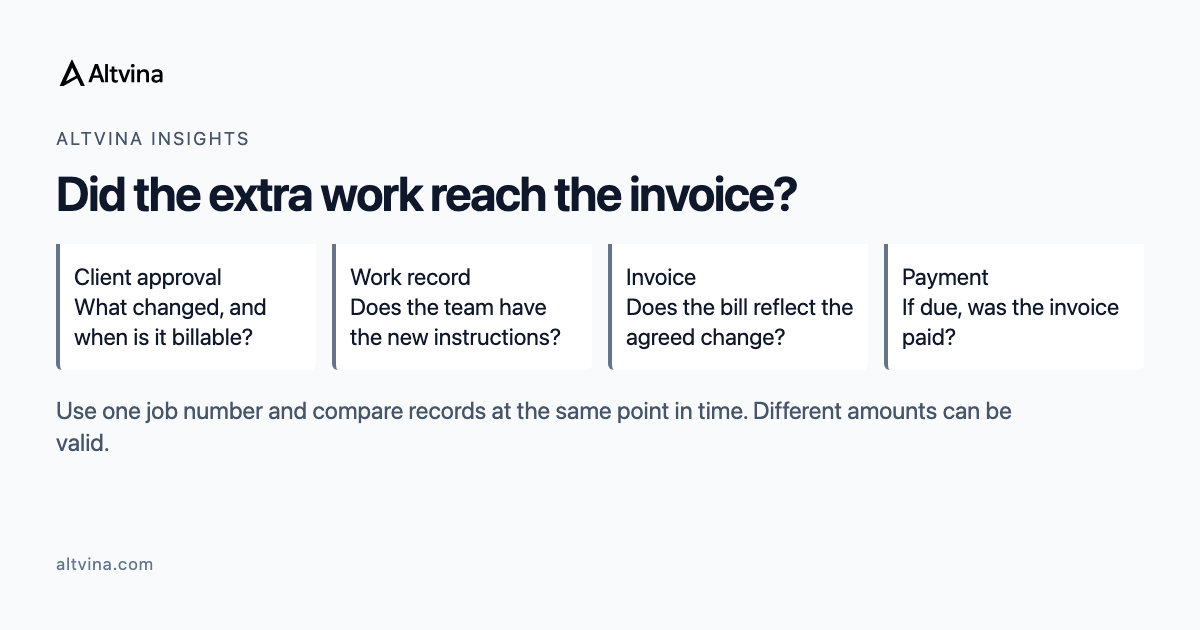
- Client approval: What changed, and when should it be billed?
- Work instructions: Did the people doing the work receive the new scope or timing?
- Invoice: Does the amount, description and billing date reflect the agreement?
- Payment, if due: Was the invoice paid, partly paid or still outstanding?
If the work record includes the approved addition but the invoice does not, check what happens between updating the job and preparing the bill.
Different amounts do not always mean an error
The agreed price, completed work, invoiced amount and money received describe different things. A deposit can arrive before work starts. A completed job can have an unpaid invoice. An approved addition may belong on a later bill under the client’s payment terms.
Before changing a number, ask what it represents and when it should change. If that involves accounting treatment, ask the person responsible to confirm it.
Fix the step that missed the change
- The approval did not reach the person preparing invoices: Agree who sends approved changes, where they send them and who confirms receipt.
- The update did not reach the next system: Ask the person responsible for that connection to check why.
- The records cover different stages or periods: Label them clearly so the difference is not mistaken for an error.
Note what you expected, what you found and who can make the authorized correction. Link to the records instead of copying unnecessary client information into another spreadsheet. Check the correction against the same job, then confirm that the next approved change reaches the right records.
Before you add another system
A new system may be warranted. First identify what the current setup failed to do: a missed handoff needs a different fix from a broken connection or an unclear billing rule.
If you need help tracing a missing update, a Fit Call is a way to discuss whether Altvina is the right help.
More from this week
This piece stands on its own. Here are this week's 5 pieces:
- Monday: Did the Extra Work Reach the Invoice? (this post)
- Tuesday: Choose the Task You Want to Practice (coming Tuesday)
- Wednesday: How Much Work Does Your Client Do? (coming Wednesday)
- Thursday: Ask What Your Listener Thinks You Promised (coming Thursday)
- Friday: Agree When You Would Pause the Rollout (coming Friday)
Content and Accuracy Disclaimer
This article was drafted with AI assistance and reviewed by the Altvina team. We rigorously fact-check all content to ensure reliability.
Should you notice any inaccuracies or outdated information, please contact us so we can correct it. Your feedback helps us maintain high standards of accuracy and transparency.